
Are you planning to move from your current provider to Sugester? Are you putting it off because you think it is complicated and time-consuming?
It does take some time - that's true - but migrating data to Sugester is not complicated at all. You just need to prepare well.
Here is how to do it in a few simple steps.
Every system has a data export option. Think about what data you want to move and export it from your current system to an xls or csv file (the file types Sugester supports for import).
What data do you want to move to Sugester? Client database? Sales opportunities? Task list? Contacts? Emails? - all of this is possible. Just do the export.

Before you start importing data into the system, add all users and think about who should have access to what. During data import you will be able to immediately specify who is the client manager or who is responsible for sales.
Adding users to Sugester is very straightforward - just provide a login, email address, and password. Each user can of course change their password later. A detailed guide on adding users is available in our knowledge base.
Also think about access levels - should every user have access to all data? If not - create roles or departments to restrict data visibility. Departments will also be useful later during import - you will be able to specify which client, deal, or task belongs to which department, saving yourself from manually clicking through everything.
If you want to move a client list or tasks, obviously the data will go into the CRM and Tasks tabs respectively. However, think about what non-standard data you have in your current system and what you need to move to Sugester.
Perhaps you have your clients' birthdays? Or the type of subscription plans they use? Or the date of the next follow-up for an offer?
Check the default fields on the client/deal/task cards in Sugester and if you need more space for additional data, add custom fields. These allow you to move all non-standard data from your previous system. Custom fields are also essential for a correct data import.

When preparing files for import, keep a few important things in mind:
See also: 12 rules of a successful import in Sugester and What is a csv file
Once you have your file properly prepared, you can start importing data into the system. Every import starts by going to Settings → Import/Exports → New import.

In the next step, select what type of data you are importing (clients, contacts, emails, tasks, deals) and follow the instructions.
In every import, one of the most important things is correctly matching columns. Pay particular attention to this step. After loading the file, assign the correct header to each column (if a column contains email addresses, find the "email" header; if phone numbers, assign "phone", etc.).
Mark columns you do not want to import with the "skip" header.
Detailed descriptions of the individual imports are available in our knowledge base.
See also: Data import: painless CRM system implementation
The first confirmation that the import was successful is the Imported column in the import history list. If it shows the same value as the Loaded column, the import completed successfully.
If the values differ and you see additional values in the Errors column, click the error count to see what went wrong.
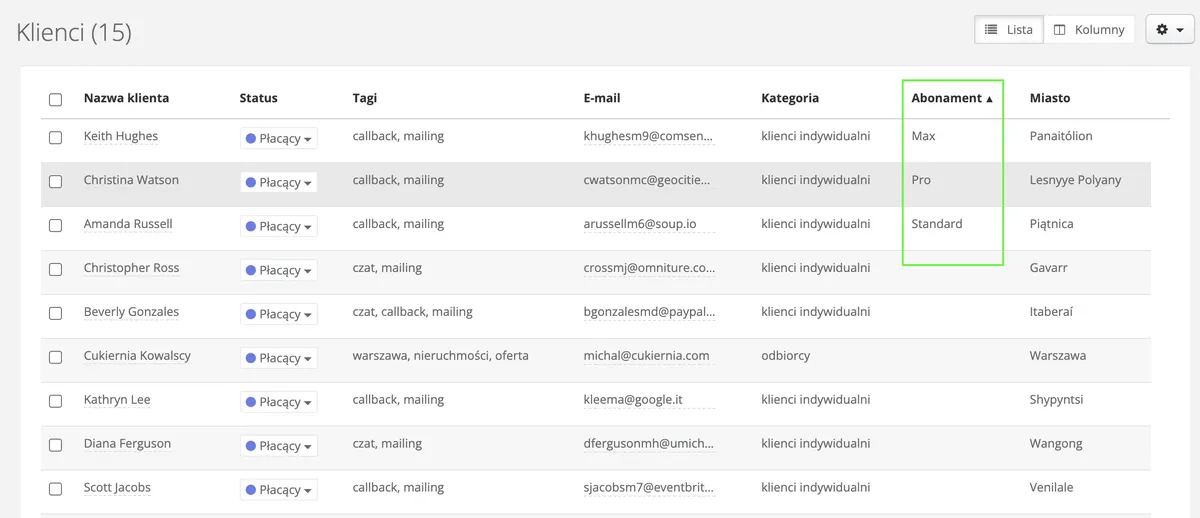
In addition to the columns in the import history, it is worth checking on the actual list of imported data to see if all information is visible and in the right place.
You can open a few randomly selected clients from the list and check on the client card whether all fields are correctly filled in. You can do the same for tasks, deals, or contacts.
You can also sort the data on the list by clicking the individual column headers to check whether there are any empty spots in columns.
Do not rush your preparation for the system move. Above all, make sure the data you want to import into Sugester is correctly prepared. And if you run into problems or have any doubts during migration, be sure to reach out to us - we will help.