Is the number of emails in your inbox growing at an alarming rate? Use these few tips to achieve the desired inbox zero in a few simple steps.
With the entire list of promotions, newsletters, notifications, and other emails arriving daily in your inbox, it's hard not to get buried under a pile of messages, not to mention important emails from clients that can get lost in all this mess.
How to clean up your email inbox to achieve the desired state of inbox zero without spending the whole day on it?
Check out our proven methods for organizing your inbox in a few simple steps.
Surely you've kept emails in your inbox that are either outdated or their time has passed. And they just sit there, taking up space and causing chaos.
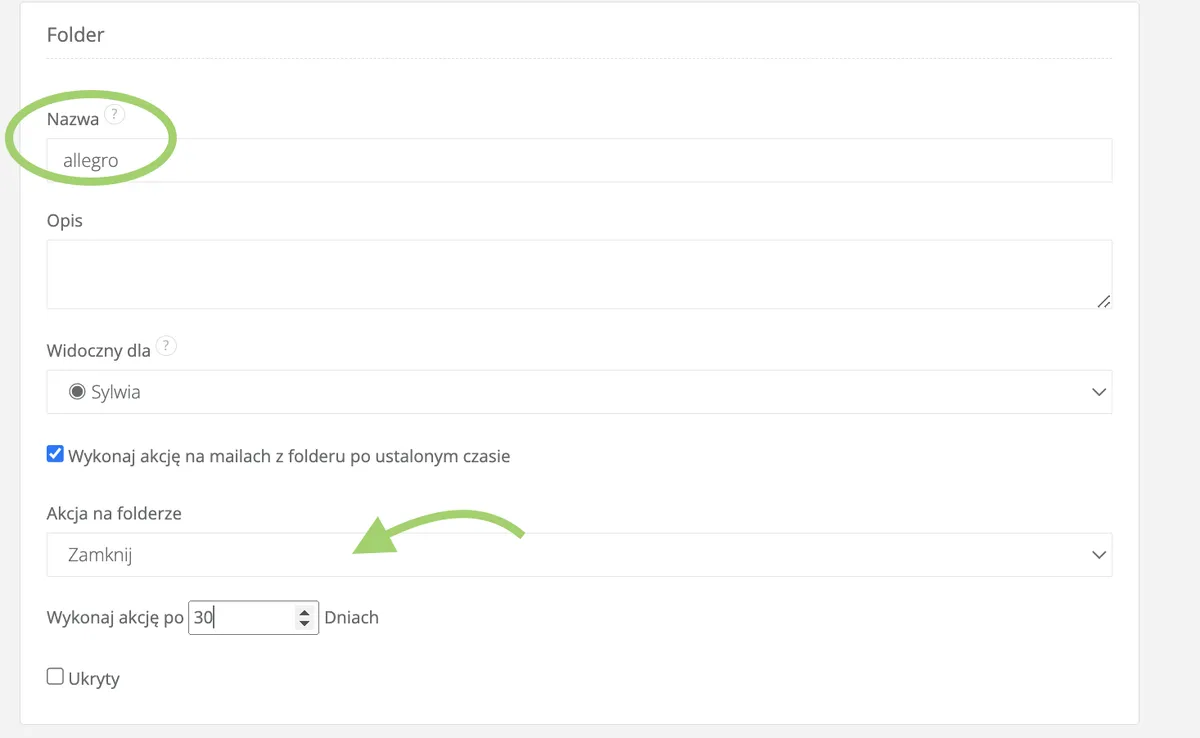
In Sugester, there is a special folder - “Full list of delayed” for such emails. It contains all messages that you didn't respond to “on time”. What exactly does this mean? In Sugester settings, you can specify after how much time from the email's arrival in the inbox and lack of interaction it becomes delayed.
Sort messages in the delayed folder from the most important, check if there is any email you should still address, and archive the rest. You can do this with one click using the mass action option on the inbox, just one checkbox above the list. Done!

Before you decide to delete all spam, check if all emails are indeed unnecessary. If by some miracle a client email ended up in spam, use the “This is not spam” option to move the marked email to the inbox, and delete the rest immediately.
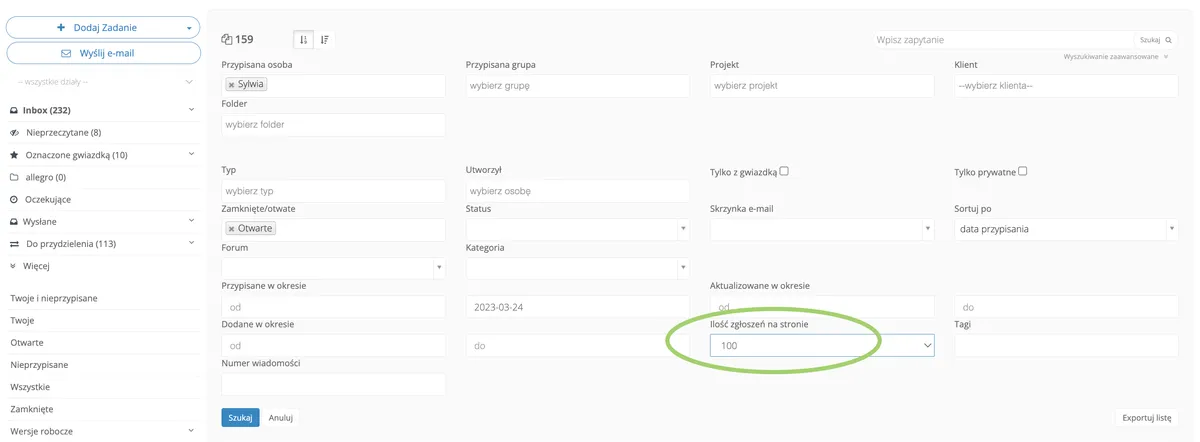
If there's quite a lot of it, go to advanced search in the inbox and change the display option on the page. Just select 100 in the “Number of submissions per page” field (by default, we display 25 posts).
No matter how many newsletters you receive daily, it's worth dealing with them once and for all. In Sugester, the inbox search will help you with this. Just type “news” or “newsletter,” and the system will display all such emails.
Then take a moment to unsubscribe from each of them. It may be a tedious task, but unsubscribing from newsletters will drastically reduce the number of emails arriving daily in your inbox.
And what about newsletters you actively and consciously subscribe to? Create a separate folder for them in Sugester and set a filter that will catch all such emails and redirect them to the appropriate place. You can review the folder, for example, once a week and decide on the further fate of such messages.
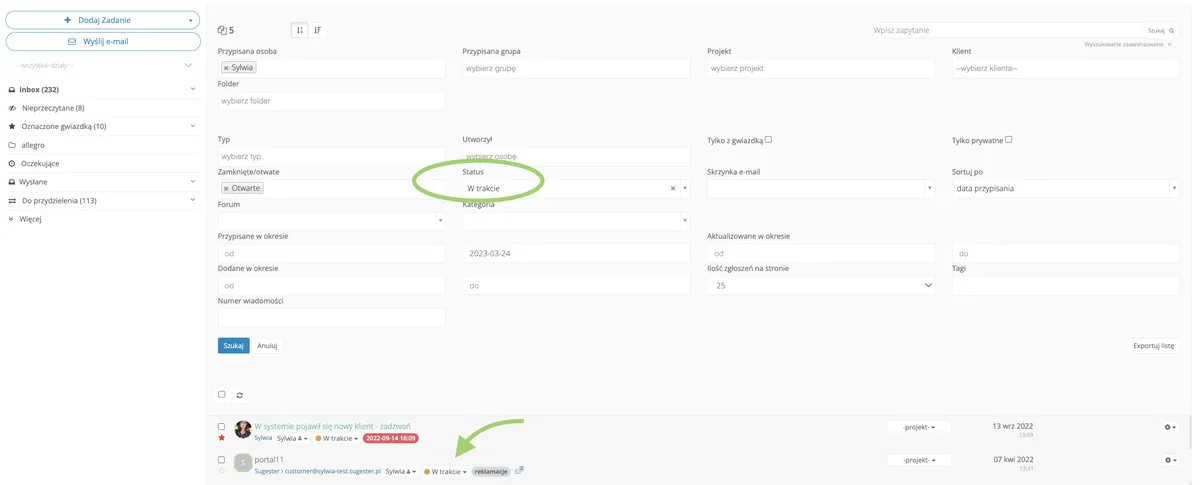
Sometimes in the pile of emails cluttering our inbox, we no longer know what is current and what is not. That's why we often leave emails, especially from clients, just to “hang” there just in case. The email statuses in Sugester can help you solve this issue. Just go to advanced search in the inbox, and in the “status” field, select, for example, “Resolved” and check if emails with such status are still on the inbox list. If so, archive them immediately. Check the other statuses in the same way. This will quickly exclude resolved, outdated, or irrelevant issues.
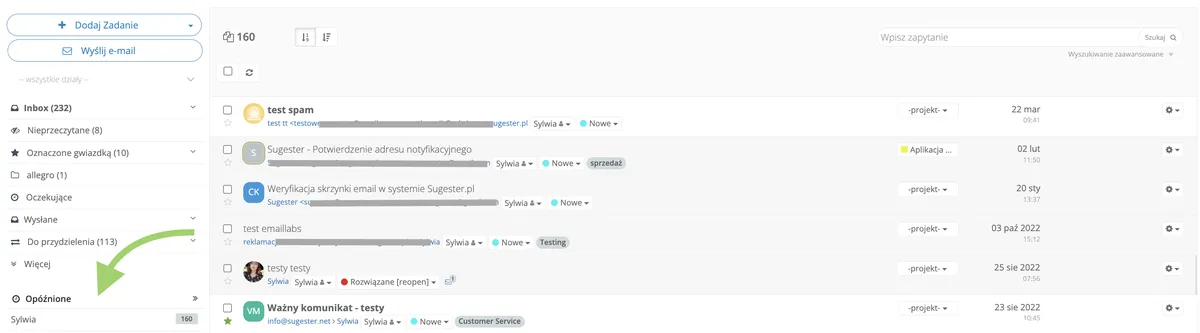
If you have separate folders for notifications about purchases, e.g., from allegro or payment confirmations, you know how quickly such folders fill up. Such messages are worth keeping, but they don't necessarily need to clog the folder and stay there indefinitely. Using Sugester, you can automate the process of archiving such messages. Just set whether such emails should be immediately deleted, closed, or have their status changed. All thanks to the “Perform action on folders after a set time” function. Not only does using this function help us keep our inbox in check, but it also positively impacts performance.
Do you have emails from ... last year in your inbox? Don't keep them in your inbox indefinitely. Go to advanced search in the inbox and create a filter “added in the period from-to” e.g., 1.01.2021-31.12.2021. Then archive all the searched emails.
Check unread posts. In Sugester, just go to the “Unread” folder in the inbox. Review the list of messages. If you haven't read these emails in the last two weeks, you probably never will, so you can safely archive them. If necessary, you can always restore them from the archive. You can also, for example, use advanced search in the inbox and set filters: unread older than 30 days.
If you see emails regularly repeating from a sender that are completely unnecessary or unimportant to you - create a filter for them. If something is spam, just add your own anti-spam filter. In Sugester, this is possible thanks to the “Spam” option in filters. Just enter the sender or senders in the filter and that's it. All emails will automatically go to the spam folder and won't clutter your inbox. You can also create a separate folder for such messages. Then set a reminder to check and clean this folder, for example, once a week.