The General Data Protection Regulation was introduced in 2018 by the European Union. Since then, it has given EU citizens greater control over their personal data and obligated data processors to take increased responsibility for that data.
Since the directive was introduced, Sugester has enabled businesses to support the changes resulting from the legislation.
In this article, we show you how our CRM system meets GDPR requirements.
You'll find:
Data security in systems such as a CRM is a top priority.
In Sugester, in addition to basic safeguards such as data encryption, account backup, event monitoring, and an SSL certificate for your own domain, you have features at your disposal that allow you to introduce additional security measures. These include:
More information about security and a detailed description of the listed features can be found in a separate article: 6 ways to secure data in your CRM system
You can collect and store data processing consents in Sugester using our forms.
Simply add a "Consent to data processing" checkbox to, for example, a contact form or newsletter sign-up form.
How to do it?
You'll find information about granted consents on the client card. And to make it easier to see which clients have given their consent and which haven't, in the display options check that the consent field is shown on the client list.

If a client who once gave you consent, for example to receive a newsletter, decides they want to opt out, then - in accordance with GDPR principles - you must make it as easy for them to unsubscribe as it was to subscribe.
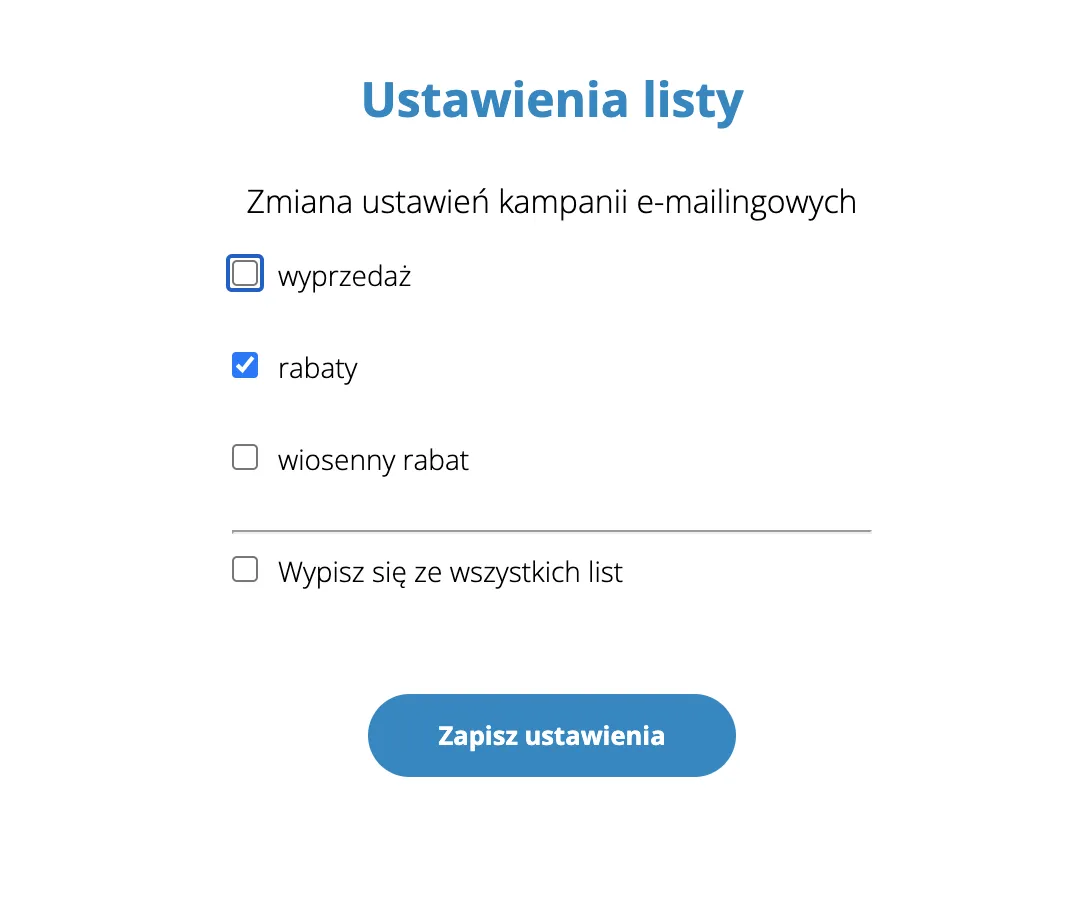
If you use mailing in Sugester, your task is made easier. Every mailing campaign sent through our system automatically includes an unsubscribe link. It allows clients to easily opt out, for example from a newsletter, simply by clicking the link in the message.
Our unsubscribe link has one more advantage. In addition to easily opting out of a campaign, the client also has the option to sign up for another campaign that interests them more thematically.
How? When creating recipient lists, use the list groups feature. If you're sending a campaign to a recipient list that belongs to a group, then when the recipient clicks the unsubscribe link they'll also see other lists within that group they can sign up for.
If the client themselves chooses what interests them and what content they want to receive, there's a much greater chance they'll respond positively to your next mailing.

Because you're using a CRM system and have all client data in one application, you won't have any trouble "returning" data to your client if they request it.
Using the export features in Sugester, you can extract data from the system and share it with the client in xls and eml files.
The data you can export from Sugester includes:
If you sign GDPR agreements with clients in electronic or even paper form, you can always upload a scan of such an agreement to the CRM.
The client profile has a separate Attachments section where you can add the documents you need.
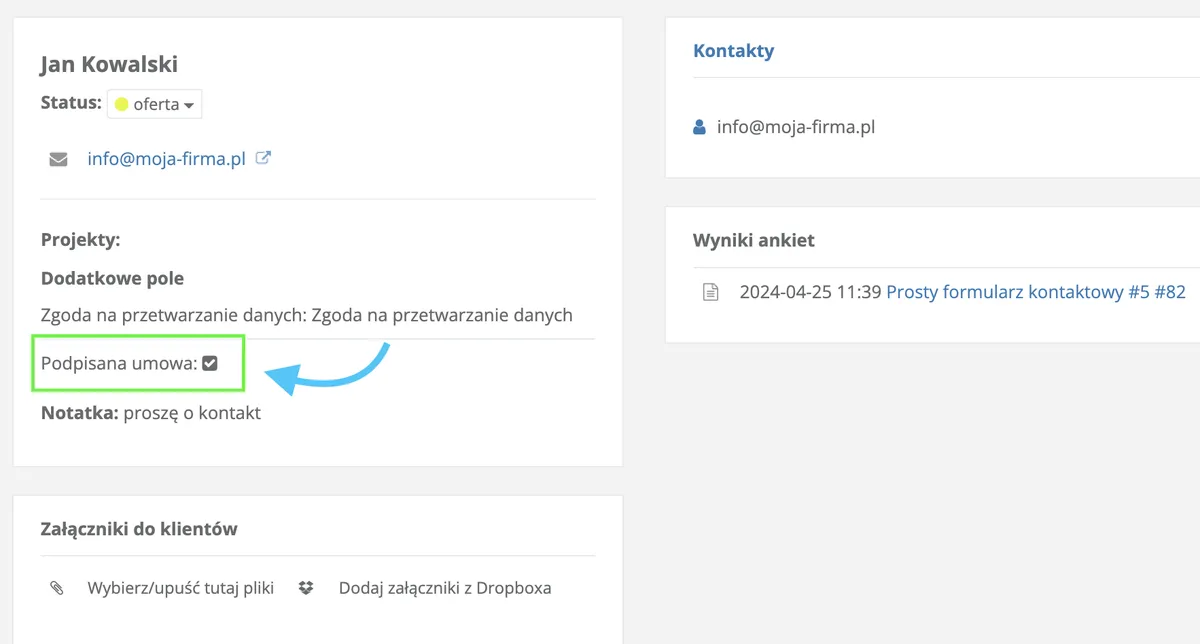
Start by adding a custom field where you'll store information about the signed agreement. This will not only help you organize information, but will make it easier to find clients who, for example, haven't signed the agreement yet.
On the client card, in the Additional fields section, a new checkbox will appear.

Every time you attach a file with the signed agreement to a client, also check the "Agreement" checkbox.
If you see "Yes" on the client list in the "Agreement" column, it means the checkbox is checked and the agreement is signed. "No" means the client has not yet signed the agreement.
If you manage agreements as described above, you can at any time easily find all clients who haven't signed an agreement with you and take further action.
You can search in 2 ways:
You can go to advanced search in clients and enter a simple search condition
"Agreement" < 1
In the search results you'll find all clients who haven't signed the agreement yet.
This method is better because you can save such a search as a filter, and then based on that filter create a recipient list to which you'll send a mailing reminding them to sign the agreement.
GDPR compliance of a CRM system is essential for maintaining personal data security and fulfilling European regulations.
Implementing appropriate GDPR-compliant security measures and procedures allows companies to effectively process client data while preventing potential legal violations.