
You're using deals in Sugester but feel like you don't know much about them and aren't taking full advantage of all the possibilities? That's about to change.
In this article, we give you a few super useful and proven tips and tricks for squeezing even more out of your deals.
See specific examples
Most businesses base their sales strategy and marketing activities on thorough data analysis. Does this always have to involve generating complex reports? Definitely not. In Sugester, you can analyze data based on search results in the deals list.
You can search for data in 2 ways:
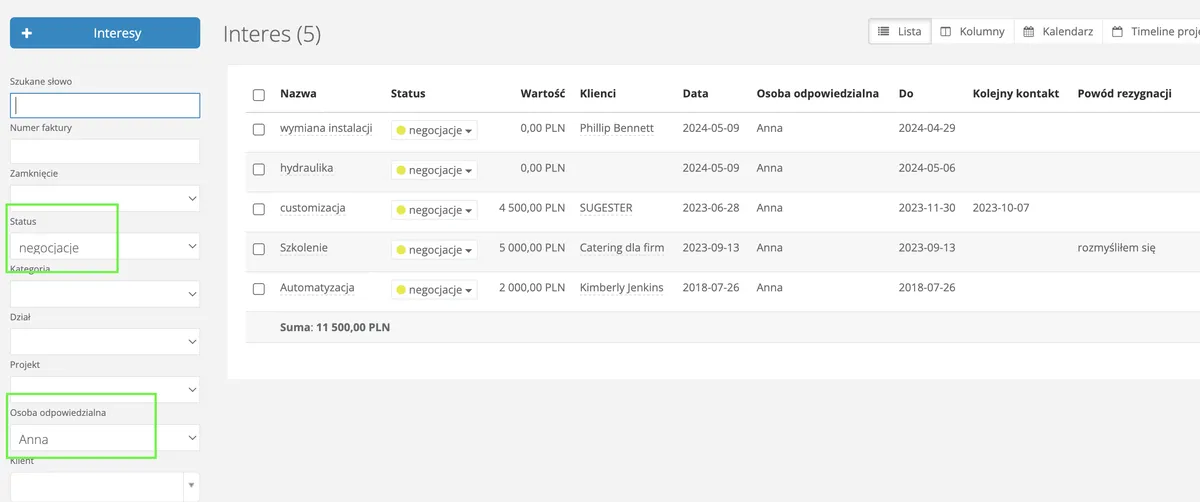
Using the filters on the left side of the deals list, you can quickly find, for example:
There are many possibilities; you can freely combine search filters to find the necessary information.

Advanced search in deals is a powerful tool. Using the available rules, you can search for detailed information, for example only from selected fields or excluding certain data.
The main advantages of this search are:
This is where you'll find information from specific custom fields. Need to find all clients who have the Standard package with you? Or those you're scheduled to contact again next week? Find your field name on the list and enter what you're looking for. Done.
If you need to narrow down the search results to a specific group, create a search with multiple conditions. Simply click the Add condition button.
If you check specific data regularly (once a week, once a month, etc.), for example your product sales figures, instead of manually entering search rules each time you can save the filter on first use and then simply find it on the list and check the results.
The list in such a search is dynamic, which means that if a month ago you saved a filter named "sales", opening it today the system will display all deals that meet the conditions of that filter, including new deals created during the past month.
Sometimes it's easier to perform an action on several deals at once. If you want to assign 20 deals to a specific employee all at once, move called contacts to a different status, or assign found opportunities to a specific department, use the bulk action options in deals.
Simply check the checkbox next to the Name column in the top left above the list, or the checkboxes next to individual deals. An additional toolbar with a menu will appear, allowing you with a single click to:

A great convenience in deal management is the integration of Sugester with InvoiceOcean. With this integration, for every completed sale you can quickly issue an invoice without manually entering data or switching between two systems.
The integration means a shared client database and a deal-invoice action link. If you have a deal in Sugester and want to issue an invoice for it, simply click Add invoice, and the system will take you directly to InvoiceOcean where a pre-generated document with automatically populated client and product data will be waiting for you.
See also: Sugester integration with InvoiceOcean - CRM and invoicing in one place
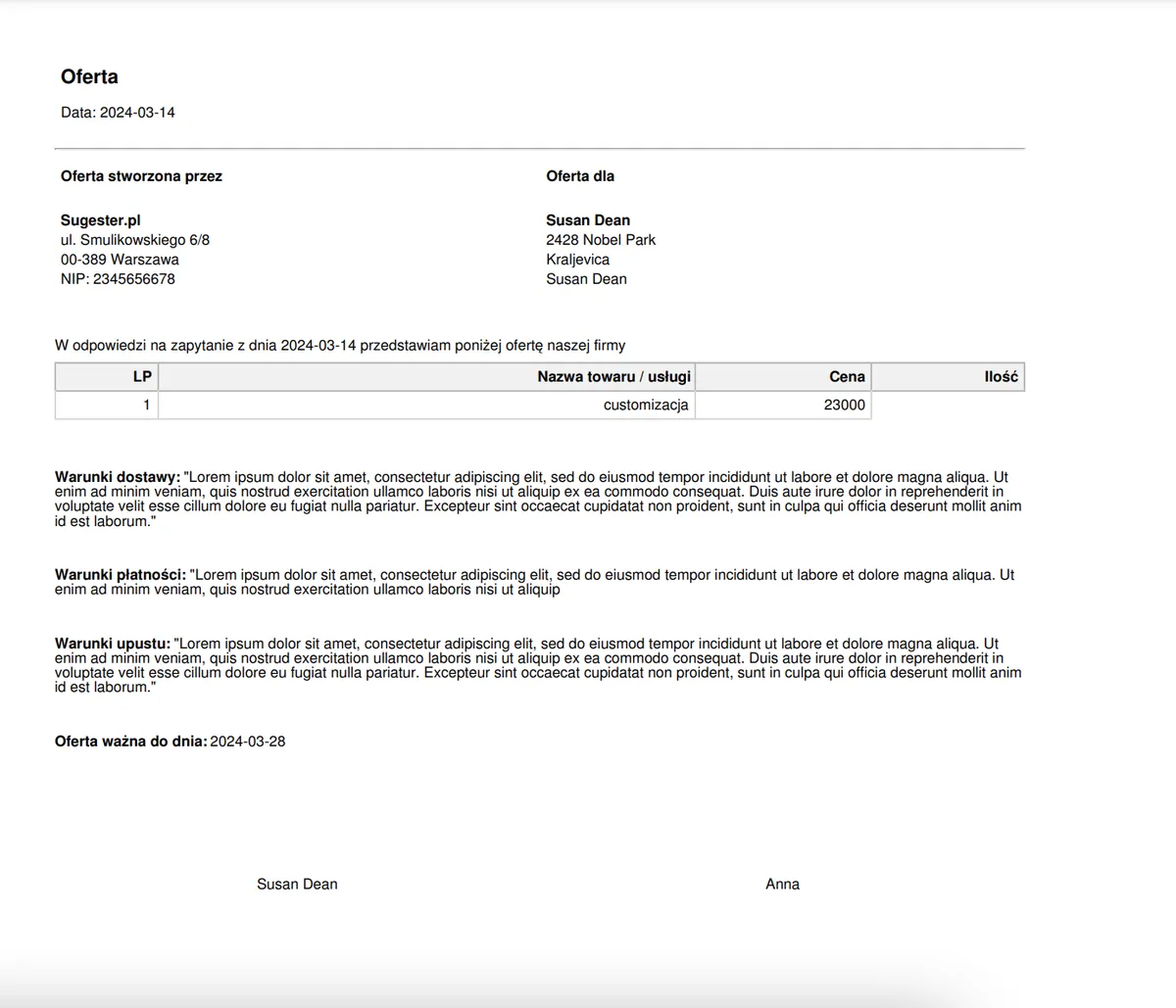
If sending clients a personalized quote is part of your sales process, you can generate such a document directly in Sugester.
How to do it?
Start by preparing a quote template in HTML format. You can create such a template yourself or use ours (the code to download is available in the article Document templates).
You can add your logo and use your company fonts and colors. Of course, you can have several different quote templates.
The next step is generating the quote:

Regardless of your industry, you certainly work with non-standard data that's useful to have at hand when managing the sales process.
Every piece of information about a client and their preferences that may in the future help personalize an offer or close a sale should be saved in additional custom fields.
You have several field types available: dropdown, text field, date, and multiple choice field.
By using custom fields, you not only have a place to store important sales and client information, but you can also include that data in search-based analysis.
For example, by storing data about your clients' subscription packages, you can create a promotional campaign and send a mailing with a special offer for a higher package to all Standard clients.

If your deals are messy because each employee names new deals however they like, the solution for you may be the deals dictionary.
How does the dictionary work?
As an account admin, you enter specific names in CRM Configuration, in the Deal types field - e.g., vip training, customization, automation, etc.
With this setting, when employees add a new deal, they can only choose from the names you created. This standardizes naming and prevents the same deal from being described in five different ways.
If your deals involve scheduling client installations, catering delivery, or meetings, the most convenient way to track deal dates is through the deals calendar.
The calendar is divided into monthly, weekly, and daily views. This makes it easy to stay on top of your activities, especially when you have several meetings scheduled per day.
An additional benefit is the search bar on the left side of the calendar and the integration with the client database. With one click you can go to the client profile to add a note or schedule the next meeting, or immediately issue an invoice after completing a service.

In this article, we shared a few tips on working with deals in Sugester. If you need more information about deals, we recommend the article Deals in Sugester - our approach to managing your sales process