
Are you considering switching to a new CRM system but afraid of the implementation? That's understandable - moving data from one software to another can be extremely cumbersome. In Sugester, we've simplified this process to the maximum by creating an easy data import system.
With import, you transfer all previously collected customer data to Sugester. Whether you're importing from a pre-prepared file or from another system, both cases are equally simple. It's a one-time operation, and once imported, you use the data continuously.
If you're importing data to Sugester for the first time, just prepare the file properly, upload the data, and you're done! You can start using it right away.
You've got the preliminary information, so now you can start preparing the file you'll import. The key word here is "properly". It might seem like the easiest part of the import, but in reality, a well-prepared file is the guarantee of import success.
What do you need to know about import files?
If you have your file ready, it's time for the next step - additional fields. What does this mean? We already mentioned this when discussing files.
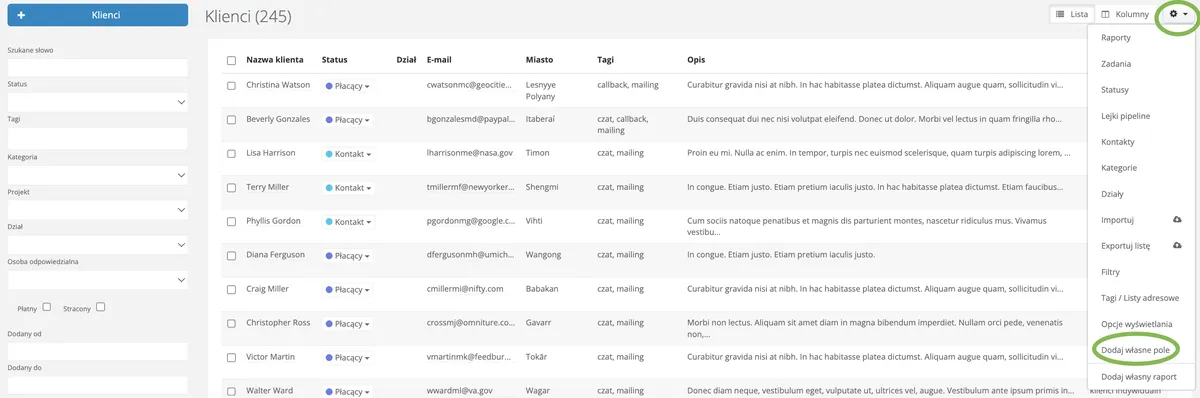
If your file contains data that is personalized and specific to your industry, and Sugester doesn't have corresponding fields, you simply need to add them. That's what custom fields in the CRM are for.
With them, you can create as many fields as you need to store all necessary customer information. They are essential for the import to be carried out correctly. Why? Because the system, when "taking" data from the file, needs a designated place for each piece of data. Without this, your import will be incomplete.

The last step before successfully completing the import is assigning the correct headers to the columns in Sugester. This ensures that the email address goes to the email field, the company name becomes the customer name, etc.
What does this mean? Take a look at the screenshot below.
Above each column of the customer file there is a menu to select the field where the content of that column should go. So if a given column contains email addresses - select "E-mail" from the menu; if the column contains tax ID numbers - select "Tax ID", etc.
If the file has a header (the first row in the file contains column titles), you can use the "File has headers" option, where the system will automatically match headers based on the column content. However, it's always worth checking whether it did so correctly.
If we don't want to import certain columns from the file, just set the "skip" option in the column header.
Once you've set all the headers, just click "import data" and you're done! You can now enjoy your brand new customer database, which you can expand, manage, and modify as you wish.
What if something went wrong? Don't worry, it happens to the best. The import might contain errors. You can easily check this on the import list in the "errors" column. By clicking on the number of errors, you'll be taken to a list where you can read exactly where the problem lies.
This article has been updated. It was first published on 25.03.2016.